Master Your Classes: The Ultimate Guide to Converting Notes to PDF
Feb 26, 2026
Turning your notes into a PDF is one of those low-key hacks that completely changes the game for school. Seriously. Almost every app you use has a built-in "Export" or "Share" button that lets you save your stuff as a PDF. With one tap, all your notes become searchable, shareable, and readable on literally any device.
Why Your Messy Notes Are Holding You Back
Let's be real for a second. Your study life is probably a chaotic mix of different formats. You’ve got 50 blurry photos of a whiteboard in your camera roll, a dozen different Google Docs for one class, and a physical notebook you can barely read (and probably can't find).
This isn't just disorganized; it's actively sabotaging your study time and jacking up your stress levels.
Converting all that scattered stuff into clean, simple PDFs isn't just about being tidy. It’s about creating a single, reliable study hub for each of your classes. Think of it as the ultimate organizational glow-up before the real studying even kicks off.
The Ultimate Study Glow-Up
When you start turning your class materials into PDFs, you're essentially building your own custom digital textbook—one that’s actually useful.
Here's the TL;DR on why this is a vibe:
Universal Access: PDFs just work. On your phone, your laptop, your tablet... you name it. No special app needed. You can pull up your notes five minutes before an exam without any drama.
Merge Everything: Got typed notes, handwritten diagrams from your tablet, and screenshots of lecture slides? A PDF brings them all together into one clean, scrollable document. No more frantic app-switching.
Search and Find Instantly: A searchable PDF is your bestie during a last-minute cram session. Just hit
Ctrl+Fto find that one specific definition or formula you desperately need. It's a lifesaver.
This shift from scattered notes to organized PDFs is a proven game-changer for students who want to study smarter.
Benefit | What It Means for You |
|---|---|
All-in-One Hub | No more hunting through five different apps. All your notes for a single class live in one document. |
Works Everywhere | Open and study your notes on any phone, tablet, or computer without worrying about compatibility issues. |
Easy to Share | Need to send your notes to a study partner? A PDF is the simplest, most professional way to do it. |
Searchable Content | Find any keyword, formula, or concept in seconds, which is clutch for open-book exams or quick reviews. |
Ready for AI Tools | Clean PDFs are the perfect format to upload into AI study tools to create flashcards and quizzes automatically. |
At the end of the day, converting to PDF sets the stage for more effective, less stressful studying.
This whole move to digital is bigger than just you, too. The global PDF software market hit USD 2.15 billion in 2024, and it’s only going to get bigger as more people ditch paper for good.
In fact, students who are early adopters of AI-driven PDF study guides are already cutting their study time by an average of 30%. They get straight to the core concepts without wasting time on clutter. You can discover more insights about this digital shift and how it’s impacting students.
"Think of converting your notes to PDF as step one. It organizes the chaos. Step two is using that organized content to actually study smarter, not harder."
And that’s where the real magic happens. Once you have your organized PDFs, you can upload them directly into an AI tool like Vivora. It takes your static notes and turns them into personalized study guides, complete with flashcards and practice quizzes. This is how you reclaim your study time and, honestly, your sanity.
How to Convert Notes to PDF on Any Device
Okay, so you're sold on the idea of getting your study life in order, but how do you actually do it? Turning your notes into PDFs might sound like a technical chore, but it’s honestly super simple once you know which buttons to press.
We're going to walk you through the exact process for the apps you already use, so you can stop scrolling through a million screenshots and start building your unified study hub.
The whole point is to get all your scattered notes—from messy lecture scribbles to typed-out summaries—into one clean, universally shareable format. This simple flow shows how you can go from total chaos to organized clarity in just a few minutes.
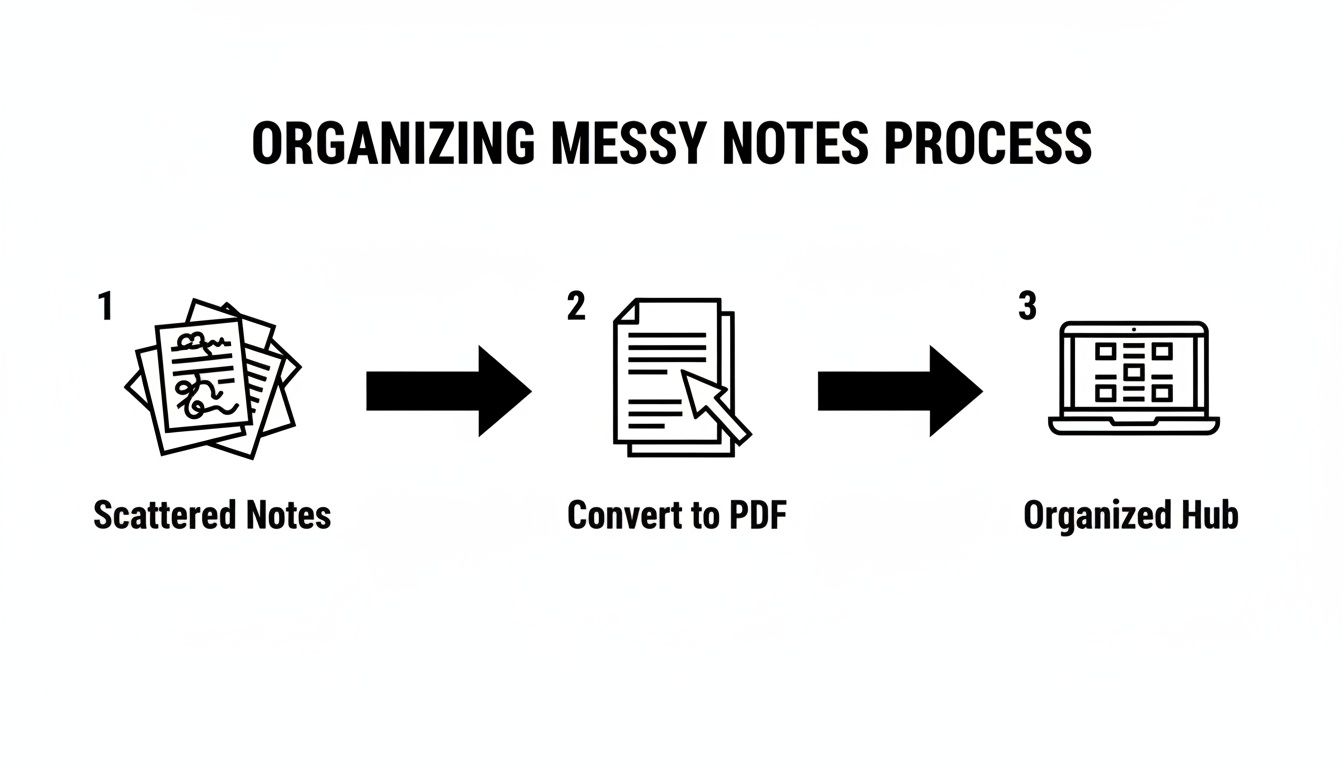
This is the entire workflow in a nutshell: transforming your scattered lecture notes, textbook highlights, and random thoughts into a central digital library. It’s the essential first step to reclaiming your study time.
Exporting from Your Go-To Note-Taking Apps
Every student has their favorite app, whether it’s for doodling diagrams on an iPad or typing up lecture notes on a laptop. The good news is, pretty much all of them have a built-in "Export to PDF" feature that’s just a few taps away. You just need to know where to look.
Let's break it down for the most popular ones:
GoodNotes & Notability: If you're an iPad user, these are probably your ride-or-dies. In either app, find the Share or Export icon (it usually looks like a box with an arrow pointing up). Select "Export This Page" or "Export All," and then choose PDF as the format. Pro tip: Always choose the highest quality setting to keep your diagrams and handwriting looking crisp, not pixelated.
OneNote: Microsoft's OneNote is a beast, but exporting can be a little quirky. On a desktop, head to File > Export, then select "Page," "Section," or "Notebook." Choose PDF. Be warned: OneNote’s "infinite canvas" can sometimes create weirdly formatted, super-wide pages. To fix this, set a specific paper size (like A4 or Letter) in the "View" tab before you export.
Apple Notes: Don't sleep on the default Notes app. To make a PDF, open the note, tap the Share icon, and hit Print. Now, instead of actually printing, just use two fingers to "pinch and zoom" out on the print preview. This automatically creates a PDF that you can share or save to your files. It's a hidden hack that works like a charm.
Getting your digital notes into PDF form is a great start. But what about all those physical notebooks filled with frantic lecture scribbles?
Turning Handwritten Notes into PDFs
That stack of notebooks from your history class isn't useless—it's just not in the right format yet. Your phone’s camera is the fastest tool you have for scanning handwritten notes into a multi-page PDF. You don’t even need a separate app for it.
"Your phone is secretly a powerful scanner. Using the built-in document scanner feature ensures your notes are flat, cropped, and perfectly legible—way better than just snapping a regular photo."
Here’s the quickest way to do it:
On an iPhone: Open the Notes app, create a new note, and tap the camera icon. Choose Scan Documents. The camera will automatically detect the page, snap a picture, and crop it for you. You can keep scanning multiple pages, and they’ll all be saved into a single, clean PDF document.
On an Android: Open the Google Drive app, tap the big “+” button, and select Scan. It works just like the iPhone scanner, letting you capture and compile multiple pages into one file.
Once you’ve scanned everything, you can easily share that PDF and upload it with all your other digital notes. Now you're ready for the best part—turning those PDFs into actual study tools. You can explore how Vivora takes these organized notes to pdf files and transforms them into interactive study guides.
Pro Tips for Creating Smarter Study PDFs
Alright, you’ve mastered turning your chaotic notes into clean PDFs. High five! But that’s just level one. Now, let's turn that basic file into a high-powered study asset that actually works for you, not against you.
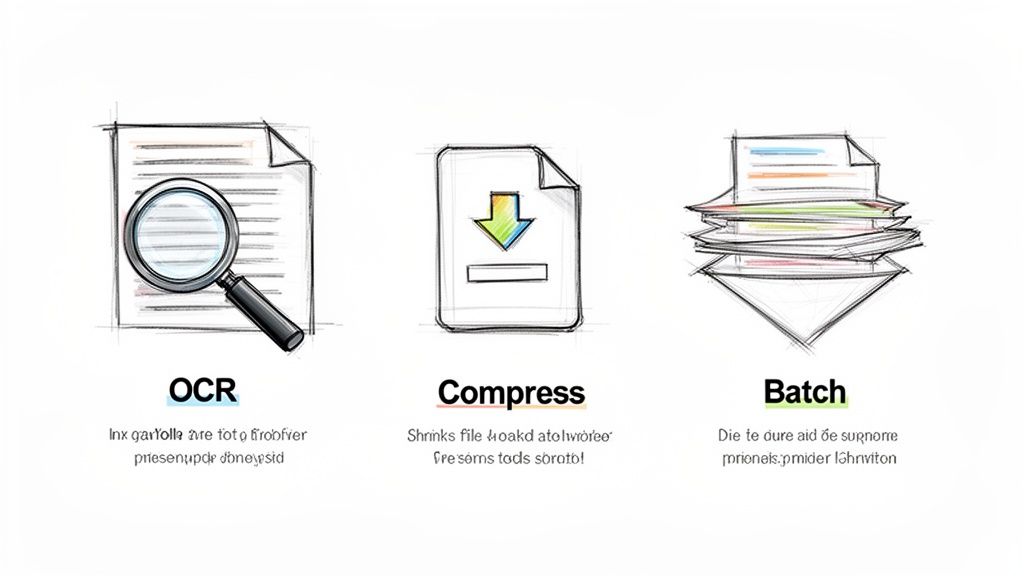
These are the pro moves that separate a digital notebook from a legit study guide. We’re talking about optimizing your files so they’re not just organized, but also smarter and way more useful when you’re cramming for that midterm.
Make Your Notes Searchable with OCR
Ever frantically scrolled through a 50-page PDF of scanned notes, trying to find that one specific formula the professor mentioned? The struggle is real. This is where Optical Character Recognition (OCR) comes in and saves the day.
OCR is the magic tech that scans the text in your images—including your own messy handwriting—and makes it searchable. Instead of endless scrolling, you can just hit Ctrl+F and find exactly what you need in seconds. Most scanning apps and PDF tools have this feature built-in; you just have to make sure it’s turned on when you export.
This tech is a total game-changer for exam prep. It's a key part of what’s known as Intelligent Document Processing (IDP), the tech behind smart ‘notes to PDF’ conversion. The market for this is set to explode from USD 2.16 billion to a staggering USD 46.59 billion by 2035.
For students, who already make up 40% of AI note-taker users, this means AI can auto-transcribe a two-hour lecture and export it as a set of searchable PDF flashcards, boosting retention by a reported 35%. You can learn more about the rapid growth of document processing tech and how it’s changing studying.
Shrink Huge Files Without Losing Quality
You’ve scanned an entire semester's worth of bio notes, and now the PDF is a massive 100MB. Good luck emailing that to your study group or uploading it to your cloud drive without it taking forever.
This is where file compression comes in handy. Most PDF software and tons of online tools let you shrink your file size, often with just one click.
Online Tools: Websites like Smallpdf or Adobe's free compressor are perfect for a quick fix. Just upload your file, and it'll spit out a smaller version.
Desktop Apps: Programs like Adobe Acrobat give you more control, letting you balance file size with image quality.
Seriously, always go for a smaller file. It makes sharing, storing, and opening your notes way faster, especially on your phone.
Use Batch Converting to Save Time
If you have dozens of separate lecture notes in an app like GoodNotes or Notability, exporting them one by one is a soul-crushing waste of time. Don't do that to yourself. Look for a batch export or batch convert option.
This feature lets you select multiple files—or an entire folder—and convert them all to PDF in one go. It’s a simple trick that can save you a ton of mindless clicking, giving you more time to actually study or, you know, grab a coffee.
By combining these tips—OCR for searchability, compression for speed, and batch converting for efficiency—you're not just making a PDF. You're building a smarter, faster, and more effective study system. Once your PDFs are optimized, you’ll be ready to plug them into AI tools like Vivora, which can take that material and generate custom quizzes and study guides.
If you want to dive deeper into study techniques, check out our guide on how to create flashcards that help you remember everything.
From PDFs to AI-Powered Study Guides
Alright, this is where things get really interesting. You've done the hard work of wrangling your messy notes into clean, searchable PDFs. That’s a huge step, but it’s just the beginning. Now it’s time to unlock their real power and completely change how you study for exams.
Think of your new PDFs as the raw ingredients. They’re prepped and ready, but you still need a master chef (or, in this case, AI) to turn them into something amazing. That’s exactly what an AI-powered study tool does—it takes those static files and transforms them into a dynamic learning experience.
From Static Docs to Dynamic Study Tools
This is the moment you shift from organizing to actually learning. You can take all those freshly exported PDFs—your lecture notes, required readings, presentation slides, even links to relevant YouTube videos—and upload them straight into Vivora.
The platform doesn’t just act like a digital filing cabinet; it intelligently deconstructs everything you give it. Vivora's AI reads every page, pinpoints the key concepts, definitions, and major themes, and then rebuilds it all into a personalized study hub designed just for you.
This is the big reveal—the moment you realize converting notes to PDF isn't the final destination. It's the launchpad for a faster, more effective way to study that feels less like a grind and more like a cheat code for your brain.
So what does this transformation actually look like in practice? It’s not just a folder of neatly organized files. The AI actively creates the study materials you would otherwise spend hours—or even days—making by hand.
Instantly Generated Notes: The AI can take a dense, 50-page PDF and distill it into clean, organized notes, pulling out only the most critical information. No more re-reading everything just to find the main points.
Interactive Flashcards: It automatically generates digital flashcards for key terms and concepts. This means you can jump straight into active recall instead of wasting precious time writing out cards yourself.
Custom Practice Quizzes: This is the best part. It creates practice quizzes based entirely on your own course material. This is worlds more effective than generic online quizzes because it tests you on the exact information your professor actually covered in class.
Manual Studying vs The Vivora AI Workflow
Let’s get real about how much time this saves. The old way of studying is a grueling, manual process. You spend hours sifting through notes, writing out flashcards, and trying to guess what might show up on the test. The new AI-powered workflow automates the tedious parts so you can spend your energy on what truly matters: understanding the content.
Here’s a side-by-side look at the old way of studying versus the new, streamlined approach using AI.
Task | The Old Way (Manual) | The Vivora Way (AI-Powered) |
|---|---|---|
Making Flashcards | 1-2 hours of writing out cards by hand for a single chapter. | 2 minutes to upload a PDF and get them automatically generated. |
Creating a Review | Scrolling through hundreds of pages to find key concepts. | AI-generated summary highlights the most important info instantly. |
Practice Testing | Searching online for generic quizzes that might be relevant. | Custom quizzes are built from your actual lecture notes and slides. |
At the end of the day, this isn't about cutting corners; it’s about being strategic with your time and energy.
By converting your notes to PDF and then plugging them into an AI study assistant like Vivora, you’re not just saving time. You're building a powerful system that helps you learn the material on a much deeper level. You’re finally studying smarter, not just harder.
Common PDF Mistakes and How to Avoid Them
Alright, you've just converted your notes to PDF and you're feeling on top of your productivity game. But then you try to email that 200-page chemistry lecture, and your computer chokes on a massive 100MB file. We’ve all been there.
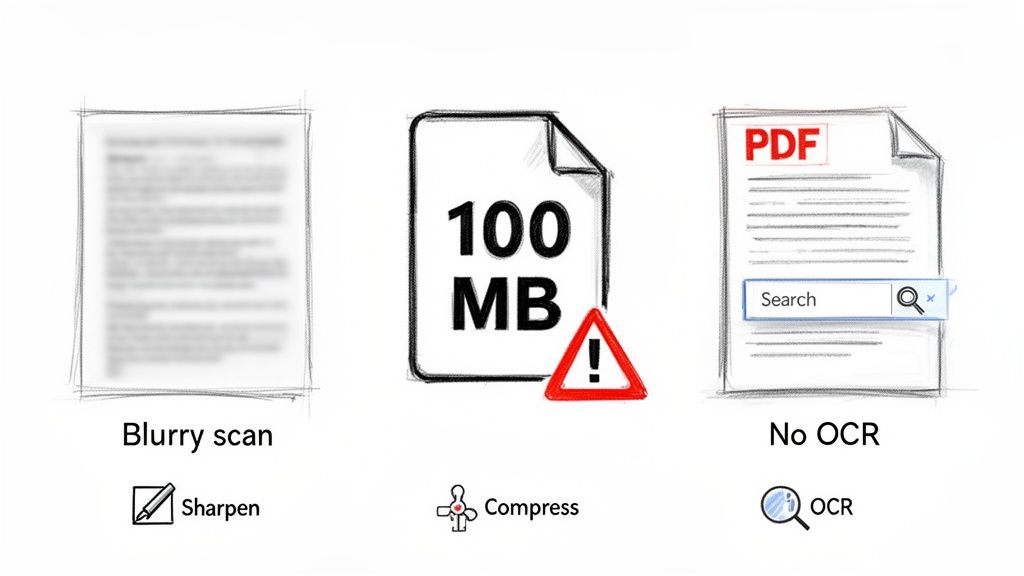
Making a PDF is the easy part. The real skill is creating a PDF that’s genuinely useful. Avoiding these common mistakes will save you from that last-minute panic when your study materials just won't cooperate.
The Gigantic File Size Trap
You finish scanning your entire notebook, hit export, and suddenly you've created a digital brick. Huge PDF files are a nightmare to upload, a pain to share, and can even make your note-taking apps lag and crash.
The fix is simple: always compress your file. Most modern scanning apps and PDF editors have a "Reduce File Size" or "Compress" option built right in. It shrinks the file down to a manageable size without turning your text into a blurry mess. Your study group will thank you.
Forgetting to Enable OCR
This is the big one. You've scanned 50 pages of handwritten physics notes, but when you search for "kinetic energy" the night before your final, you get nothing. Your PDF is just a collection of static images, completely unsearchable.
This mistake single-handedly defeats one of the best reasons to turn your notes to PDF. OCR (Optical Character Recognition) is the tech that makes the text in your scans searchable. Always make sure it's enabled when scanning or exporting.
Think of it as giving your notes a brain. This is where AI tools are changing the game. Students snapped up over 40% of the AI note-taking market in 2023, a segment set to explode from USD 535.9 million to over USD 2.5 billion by 2033. For students drowning in notes, AI can transcribe, summarize, and export interactive PDFs, which has been shown to boost retention by a whopping 25%. Check out the research on AI's impact on student workflows to see how it's shaking things up.
Creating Blurry, Unreadable Scans
A shaky hand, bad lighting, or just a lazy photo can produce scans so blurry they're practically useless. And let's be real—if you can’t read it, you can't study from it.
Here’s how you get it right every time:
Use a dedicated scanning feature. Don't just snap a picture with your camera app. The document scanner in Apple Notes or Google Drive is way smarter. It automatically corrects for weird angles and shadows.
Good lighting is non-negotiable. Scan your notes near a window or under a bright desk lamp. This is the key to getting sharp, clear text and avoiding those grainy, hard-to-read images.
By sidestepping these common pitfalls, you’re not just creating a file. You're crafting a reliable, high-quality study tool that’s ready for anything—including being uploaded to Vivora to become your new AI-powered study guide.
Your Questions Answered
Alright, let's tackle some of the common questions that pop up when you're dialing in your new notes-to-PDF workflow. Getting the basics down is one thing, but these are the details that really make the system work smoothly.
Will Converting to PDF Lower the Quality?
Not if you do it right! This is a super common worry, but thankfully, most apps have you covered.
When you go to export from a tool like GoodNotes or scan with your phone, you'll almost always find quality settings. Just make sure you pick the highest one available—it's usually called something like "Best" or "High Resolution." This keeps your detailed diagrams sharp and makes sure your handwriting stays perfectly legible.
The only time you might see a slight dip in quality is if you have a massive file and you compress it aggressively to shrink the size. Even then, modern tools are pretty smart about finding a good balance, so everything will still be easy to read.
A good rule of thumb is to always export at the highest quality first. If the file is too big to email or upload, then use a separate tool to compress it. That way you always have a crisp, high-res original to fall back on.
Can I Edit My Notes After Making a PDF?
This is a big one. For the most part, a PDF is a finished product. Think of it like a digital snapshot—it’s designed to look the same everywhere, which is why it's so perfect for sharing notes and assignments. You can't just open it and start editing the text like you would in a Word doc.
But that doesn't mean you're stuck. You absolutely can use PDF editor apps like Adobe Acrobat or even the built-in Preview app on a Mac to make certain changes. These tools are great for:
Marking things up: You can highlight key passages, add comments in the margins, or even draw directly on the document. This is perfect for annotating lecture slides your professor sent over.
Filling out forms: Incredibly handy for those worksheets or lab reports that come as PDFs.
Rearranging pages: Need to reorder your notes to create a logical study guide? You can easily delete or shuffle pages around.
If you need to make major changes to the content itself, your best bet is to go back to the original file in your note-taking app, make the edits there, and just export a fresh PDF.
What Is the Best App for Scanning Notes?
Honestly, you probably already have the best tool for the job right on your phone.
The document scanners built into Apple Notes (for iPhone) and Google Drive (for Android) are seriously impressive. They're way more powerful than just snapping a photo with your regular camera app.
These built-in scanners are designed for one specific task: creating clean, professional-looking scans. They automatically detect the edges of the paper, correct for weird angles and shadows, and boost the contrast to make your text pop. The result is a clean, flat, and readable document that's ready to be imported into your digital study hub.
Ready to stop stressing and start acing your exams? Getting your notes organized is a huge first step. The next is studying smarter. Vivora takes your neatly organized notes, lecture slides, and even YouTube videos and instantly turns them into personalized study guides, flashcards, and practice quizzes. Ditch the chaos and start your free trial today.