
Taking Notes on PDFs: The Ultimate Guide to Not Losing Your Mind
Jan 29, 2026
Taking notes on a PDF should be easy, but let's be real—it usually ends up as a chaotic mess of random highlights and comments you can never find again. The real goal is to go from passively marking a doc to actively creating organized, searchable notes that actually help you study. This means you need a smarter strategy and the right tools to turn those dense readings into your secret weapon for exams.
Why Your Current PDF Note-Taking Is a Hot Mess
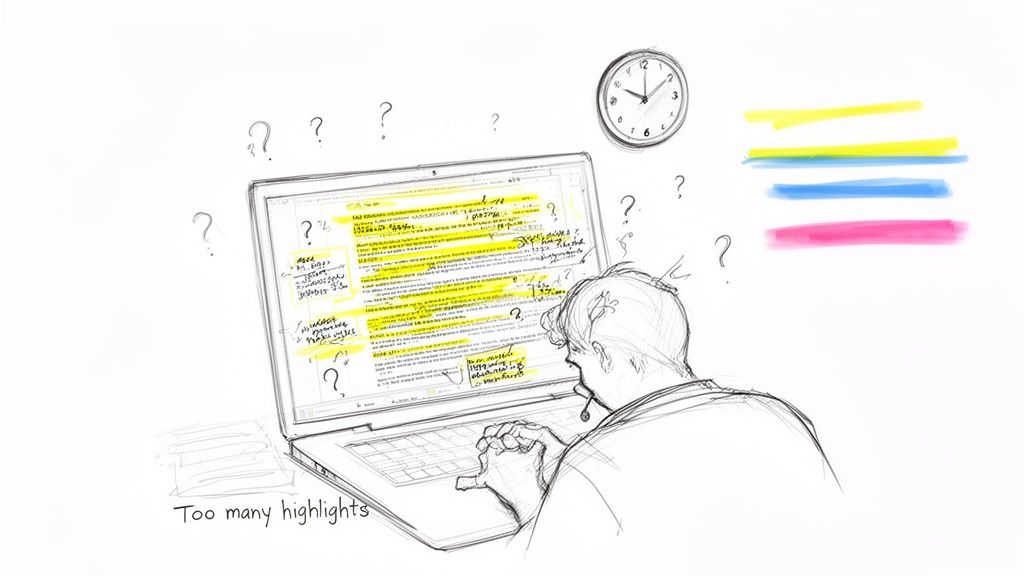
We’ve all been there. It’s 1 AM, the exam is tomorrow, and you’re desperately scrolling through a 100-page PDF you supposedly "read" weeks ago. Your screen is a blinding sea of yellow highlights, but you can’t remember what any of it actually means.
Sound familiar? This frustrating cycle is basically a rite of passage for students. We trick ourselves into thinking that highlighting key phrases is the same as learning, but it’s often just a fancy form of procrastination. Instead of actually understanding the material, this passive approach means we forget it almost as fast as we read it.
The Highlight-and-Forget Trap
The main problem is that old-school PDF note-taking creates static, dead-end notes. Your brilliant insights and crucial highlights are trapped inside a single file, making them nearly impossible to organize, connect, or review when you're cramming.
This broken system leads to a few common frustrations:
Information Overload: You’re left endlessly scrolling, unable to see the big picture or find specific info when you need it most.
Disorganized Notes: Your thoughts are scattered across dozens of separate PDFs, with no central hub to connect ideas from different readings and lectures.
No Real Learning: Highlighting doesn't force you to process the information. You’re just recognizing text that looks important, not truly understanding it.
This broken workflow is precisely why so many students are scrambling for better solutions. In fact, the global market for note-taking software ballooned to USD 7.36 billion in 2023. That number screams one thing: a massive demand for tools that can tame the chaos of PDFs and scattered class materials. The latest trends in note-taking management show just how big this shift is.
Old-School Highlighting vs. Smart Note-Taking
Here’s a quick breakdown of why your old PDF habits are inefficient compared to a modern, AI-powered workflow.
Activity | Time Investment | Learning Outcome | Organization |
|---|---|---|---|
Old-School Highlighting | High (endless scrolling & re-reading) | Low (passive recognition, not recall) | Poor (notes trapped in individual files) |
Smart Note-Taking | Low (AI extracts & organizes notes) | High (focus on active recall & connections) | Excellent (centralized, searchable knowledge base) |
The difference is stark. One method creates more work with less to show for it, while the other automates the grunt work so you can focus on actual learning.
A Smarter Way to Study
What if your notes weren't just static markings? Imagine if they were dynamic, intelligent assets that did the hard work for you. This is where a modern approach completely changes the game.
Instead of just highlighting and hoping for the best, a smarter workflow involves actively engaging with the material and then using tools that can process your notes. A platform like Vivora is built to solve this exact problem. You can upload that messy, over-highlighted PDF, and its AI instantly gets to work.
The goal is to stop being a digital librarian, endlessly organizing files, and start being a student again. A good system automates the boring stuff so you can focus on what actually matters—understanding the concepts and acing your exams.
Vivora doesn't just store your highlights; it understands them. It transforms your scattered notes into a personalized study guide, complete with summaries, key terms, and even practice quizzes. This finally bridges the gap between taking notes and actually being prepared for class. It saves you hours of manual work, reduces that pre-exam panic, and puts an end to the frustration of disorganized digital files.
Building Your Perfect PDF Annotation Toolkit
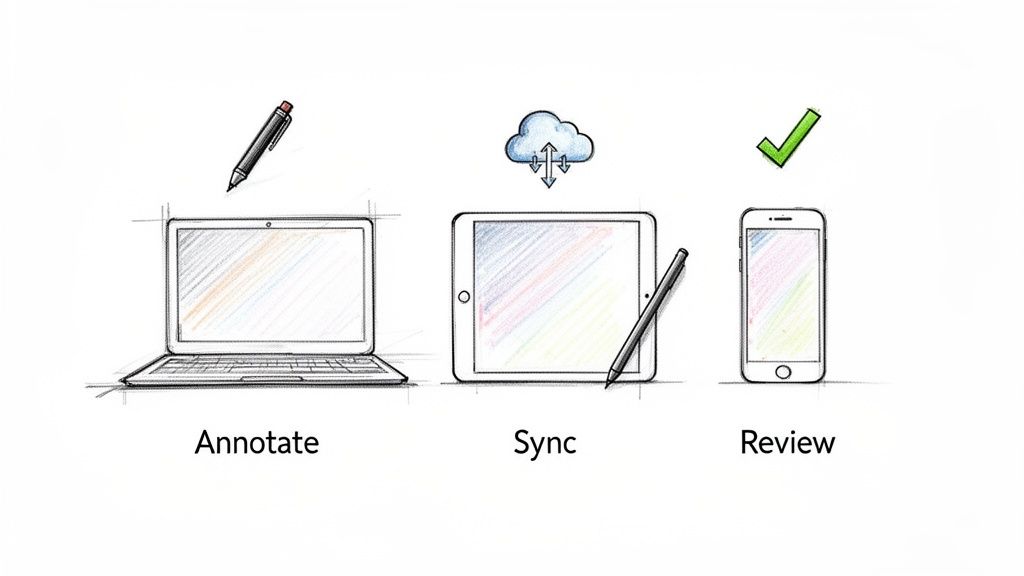
Your study setup isn't just your desk anymore—it's your laptop, tablet, and phone, all working together. To conquer the mountain of PDFs you get each semester, you need a toolkit that keeps your notes synced and accessible, whether you're in the library or on the bus. Let's build a system that works for you, not against you.
Laptop and Desktop: The Command Center
Your laptop is probably where the heavy lifting happens—the first read-throughs, the initial highlights, and the bulk of your research. The key here is an app that’s fast, simple, and doesn't crash when you open a 300-page textbook PDF. We've all been there.
Here are a couple of ways to approach it:
The Free Route: If you're on a Mac, don't sleep on Preview. It’s surprisingly powerful for basic highlighting, comments, and signatures. For Windows users, the Microsoft Edge browser has baked-in PDF annotation tools that are more than enough for quick markups.
The Power User Route: When you need more control, a dedicated app like PDF Expert is a solid investment. It offers a clean interface and lets you do much more, like editing text, adding shapes, and reorganizing pages. It's a great choice if you live and breathe PDFs.
Ultimately, your desktop setup should be all about speed and efficiency. You need something that lets you get your initial thoughts down fast, because the real magic happens when you sync those notes to your other devices.
Tablet and Stylus: The Creative Canvas
For anyone who thinks visually, a tablet and stylus combo is a total game-changer for PDF note-taking. It brings back that tactile feel of writing by hand but adds all the perks of digital, letting you sketch diagrams, solve equations, and scribble thoughts right in the margins.
Popular apps like GoodNotes and Notability are fan favorites for good reason. They nail the digital notebook experience, letting you import PDFs and mark them up just like they were printed pages. Their cloud sync is usually solid, so those annotated lecture slides are ready and waiting on your laptop when you get back to your dorm.
The real win with a tablet is how it turns passive reading into an active process. Doodling a concept in the margin or handwriting a quick summary forces your brain to engage with the material on a much deeper level, which is huge for retention.
The Most Important Tool: The Sync
Look, having the best apps on each device means absolutely nothing if they don’t talk to each other. Manually emailing files back and forth is a recipe for version-control nightmares and lost notes. You need to think about your entire workflow, not just individual apps.
This is where your toolkit needs a central hub to bring it all together, and that’s exactly where Vivora fits in.
Instead of stressing about whether your highlights from GoodNotes will show up correctly on your PC, you just upload your final annotated PDF to Vivora. It acts as the final, powerful step in your process. It takes all the notes you’ve made across all your devices and uses AI to transform them into a cohesive study guide.
Vivora pulls out key terms for flashcards, generates summaries of dense chapters, and even creates practice quizzes from the content. It’s the tool that makes all your other tools more powerful by unifying your notes into something you can actually use to ace your exams. This way, you spend less time fighting with files and more time actually learning.
Beyond Highlighting: Digital Annotation That Actually Works
Let's be real: if your go-to strategy for studying a PDF is turning the entire document bright yellow, it's time for an intervention. Highlighting feels productive, but it’s often just a fancy form of passive reading. To actually remember what you've read, you need to get in there and wrestle with the text—question it, summarize it, and make it your own.
This is all about shifting from a "highlight everything" mindset to a truly active annotation strategy. It’s less about coloring and more about critical thinking. The goal is to create a visual conversation with the material right on the page, turning a flat, boring PDF into an interactive study tool that works for you.
Create Your Personal Color Code
A simple color-coding system is a total game-changer. Seriously. It forces you to pause for a split second and categorize information instead of just mindlessly dragging your cursor over endless blocks of text. That tiny step helps your brain build mental models and makes reviewing for exams way, way faster. You can instantly spot what you're looking for.
Here’s a simple system I’ve used that you can steal or adapt:
Yellow for Key Concepts: This is for the big ideas—the main arguments, the thesis statements, the stuff you absolutely must know. Think of it as your "if I only remember one thing from this page" color.
Blue for Definitions: Reserve this for specific terms, important vocabulary, or industry jargon. When you're making flashcards later, you'll know exactly where to pull from.
Pink for Questions & Confusion: Anything that makes you go "huh?" gets the pink treatment. This creates an instant to-do list for you to ask about in class, look up later, or dig into with a study group.
Feel free to make this your own! Maybe you add green for examples or orange for important names and dates. The point isn't the specific colors; it's being consistent so your brain learns the system.
Summarize and Question in the Margins
Highlighting on its own is low-effort. The real magic happens when you force yourself to process what you just read. This is where comments and text boxes become your secret weapon for taking effective notes on a PDF.
After you finish a dense paragraph or a tricky section, pop open a comment box and summarize the main point in your own words. This technique, known as active recall, is one of the most powerful ways to lock information into your memory. You're not just recognizing the author's words; you're proving you understand the idea well enough to explain it yourself.
Think of it like this: your highlights are the what, but your comments are the so what. They capture your own understanding and make your notes a thousand times more valuable when you come back to them a month from now.
This strategy is more important than ever, especially given how central PDFs are to student life. The note-taking app market hit a massive US$7.79 billion in 2023 and is projected to explode to US$22.57 billion by 2030. A huge driver of this is the 25 million students in the US alone taking online courses in 2023, all of whom are drowning in digital readings. You can check out the full research on the note-taking app market to see just how big this trend is.
Adapt Your Strategy for Different Classes
Your annotation method shouldn't be a one-size-fits-all solution. A dense history textbook requires a totally different approach than a complex scientific paper loaded with data and diagrams.
For a history or literature PDF, for instance, you might focus more on tracking arguments, identifying themes, or mapping out character development using comments. But for a science or math PDF, you’ll probably get more mileage out of the drawing tools—circling important formulas, tracing diagrams to understand them better, or even solving practice problems right there in the margins. You can find more advanced tips on making your digital notes work for you in our guide.
The key is to stop and think about what you actually need to get out of the document. Tailor your note-taking strategy to fit that goal. By moving beyond simple highlighting and adopting these active annotation techniques, you transform your PDFs from static documents into dynamic learning environments. This is the first step toward building a smarter study system, one where your notes actually start doing the heavy lifting for you.
Turn Your Messy PDF Notes Into a Study Guide With AI
So you’ve spent hours meticulously highlighting your PDFs, color-coding key concepts, and dropping insightful comments in the margins. It’s a work of art. But now what? All those brilliant notes are still stuck inside individual files, and finals week is getting closer by the second.
This is usually where the real grind begins—that painful process of re-typing key terms, manually creating flashcards, and trying to boil down 50 pages of dense academic text into a coherent study guide. It's a soul-crushing time suck.
But what if you could just… skip all of that?
The Magic of AI Note Processing
This is the moment your smart annotation strategy really pays off. Instead of letting your notes gather digital dust, you can use an AI-powered tool to turn them from static highlights into dynamic, interactive study materials. Think of it as your own personal teaching assistant, ready to do the heavy lifting for you.
Platforms like Vivora are built for this exact scenario. You can upload that heavily annotated political science PDF—messy highlights, margin notes, and all—and its AI gets to work analyzing the content. It doesn't just see colored text; it understands the context behind your notes.
This process shows how your annotations—broken down into concepts, definitions, and questions—become the raw ingredients for an AI-generated study guide.
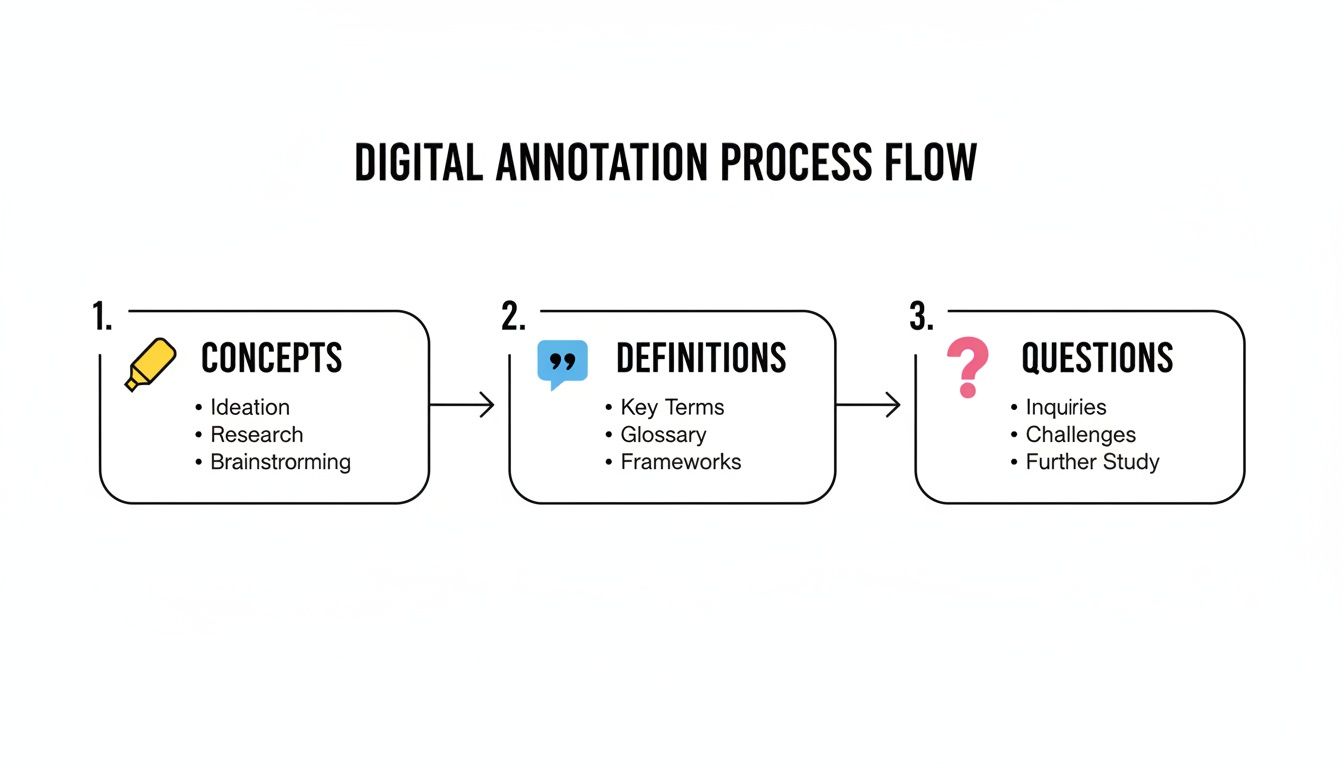
This flow isn't just a diagram; it's a roadmap showing how your deliberate note-taking choices directly fuel the AI's ability to create accurate and personalized study materials.
From PDF Chaos to Organized Clarity
Let's imagine you upload a 200-page PDF of case studies for your pre-law class. Trying to process that manually would eat up your entire weekend. With an AI tool, you get results instantly.
Automatic Summaries: The AI can whip up a concise summary of the entire document or break it down chapter by chapter. You get the high-level overview without having to reread everything.
Key Term Extraction: It intelligently identifies and pulls out all the important vocabulary and definitions—perfect for building a glossary or a set of flashcards in seconds.
Practice Questions: Based on the main themes and concepts in your notes, the AI can generate practice quizzes and exam-style questions to put your knowledge to the test.
This is a complete game-changer for study efficiency. You’re no longer just a note-taker; you’re a curator. AI is your assistant, turning raw information into a structured learning path.
The big shift here is moving from working harder to working smarter. Why spend hours on manual, repetitive tasks when an AI can do it in seconds? This frees up your time to focus on what actually matters—understanding the concepts and acing your exams.
This move toward smart automation isn't just a niche trend; it's a massive movement. The AI note-taking market, built for handling dense PDFs and class materials, hit USD 450.7 million in 2023 and is projected to skyrocket to USD 2,545.1 million by 2033. For students, this tech is a lifesaver. User studies show that AI can extract 80% of key facts from a dense PDF instantly, boosting retention by a staggering 40%.
Your Personalized AI Study Assistant
The best part about this approach is how personal it is. The study guide Vivora creates is based entirely on the content you uploaded and the notes you made. If you spent extra time highlighting sections on constitutional law, your practice quiz will reflect that emphasis. It adapts to your specific needs for that specific course.
Vivora's AI study assistant can even answer your questions using the context of your course materials, acting like a 24/7 tutor. Stuck on a concept at 2 AM? Just ask the AI to explain it in simpler terms, and it will pull information directly from your uploaded readings.
No more re-typing, no more manual summarizing, and definitely no more pre-exam panic. By combining your active annotation skills with the power of AI, you can finally bridge the gap between taking notes on a PDF and being fully prepared to dominate your tests.
Pro-Level PDF Workflows for Top Students
Alright, so you’ve moved beyond basic highlighting. You're actually engaging with your course materials now, which is a huge step. But if you really want to separate yourself from the pack, it’s time to adopt the workflows that top students swear by. This is where we get into the details of real efficiency, turning your scattered PDF notes into a centralized study machine.
We’ve all been there. Your professor hands you a scanned PDF that’s basically just a grainy picture of a textbook chapter. You can’t select text, you can’t highlight anything, and forget trying to search for that key term you need for your essay. It’s a massive headache, but there’s a simple fix.
Dealing With Scanned and Image-Based PDFs
This is where Optical Character Recognition (OCR) becomes your best friend. In short, OCR technology scans the text in an image and converts it into real, selectable text you can search, copy, and annotate. Most modern PDF editors have this feature built right in, and there are plenty of dedicated online tools as well.
Just run that scanned PDF through an OCR tool. In a few moments, that static, useless image becomes a fully interactive document. Suddenly, you can highlight, comment, and treat it like any other PDF. This is an absolutely essential first step for dealing with old readings or lecture slides that are just images.
Pro Tip: Don't let a non-selectable PDF derail your study session. Taking a few minutes to run it through an OCR tool at the beginning will save you hours of frustration later. It’s a simple move that makes your materials 100% more useful.
Create a Cheat Sheet From Your Annotations
When finals week hits, the last thing you want to do is re-read 500 pages of dense academic articles. What you really need is a condensed summary of your own highlights and notes—a personalized cheat sheet focusing only on what you found important.
Instead of wasting hours manually copying and pasting, look for an "Export Annotations" feature in your PDF app. Tools like Adobe Acrobat or PDF Expert let you export a clean document containing only your highlights, comments, and underlined text.
This instantly generates a study guide, stripping away all the fluff and leaving you with the essentials. You get an organized document with your key takeaways, perfect for that final, high-impact review session. From there, you can easily turn that summary into powerful study materials. If you want to learn more, check out our guide on creating amazing digital flashcards from your notes.
Centralize Everything for a Single Source of Truth
The ultimate pro move is to stop thinking of your study materials as separate files scattered across different apps. The best students create a central hub where all their course materials—annotated PDFs, lecture slides, YouTube video links, and personal notes—can live together.
This is precisely what Vivora was built for. It’s not just another PDF reader; it’s the command center for your entire semester.
Here’s what that workflow looks like in practice:
Take your fully annotated PDF—the one you already made searchable with OCR and exported your key notes from.
Upload it to Vivora along with your lecture slides and the link to that helpful Khan Academy video your professor mentioned.
Vivora's AI then scans all of it and generates a single, unified study guide that you can search and interact with.
Suddenly, the connections between the textbook reading, the lecture, and that supplemental video become crystal clear. Vivora’s AI can generate practice questions that pull from all three sources, giving you a much deeper understanding of the topic. This is how you stop juggling files and start building real knowledge, saving a massive amount of time in the process.
Ready to Start Your New Study System?
You’ve made it this far, so you already know the old way isn't working. The endless cycle of passive highlighting and disorganized files? It's time to leave that behind. Just marking up a PDF and hoping the information sticks is a recipe for frustration.
Let’s switch gears to an active, smarter strategy where your notes actually start working for you.
The game plan is simple but powerful: You’ll use strategic annotations to really engage with what you're reading. Then, you'll let a tool like Vivora transform that raw material into study assets you can actually use. This isn't just about saving time—it’s about cutting down on stress and genuinely understanding your course material on a much deeper level.
You don’t need to study harder; you need to study smarter. By combining intentional note-taking with the right tools, you can turn overwhelming PDFs into a clear path to better grades.
Ready to make the switch? Here’s a quick checklist to get you rolling:
Choose Your Tools: Settle on your go-to PDF app for your laptop, tablet, and phone.
Create Your System: Define your color-code. What color means "key concept," what means "exam question," and what means "definition"?
Upload to Vivora: Drag your first annotated PDF into Vivora and see what happens.
Stop drowning in digital clutter. Try Vivora for free and see for yourself how quickly you can turn your class readings into a custom study guide. Your GPA will thank you for it.
Got Questions? We've Got Answers.
Wondering about the best way to tackle your PDF readings? You're not alone. Here are some of the most common questions students ask about turning those digital documents into powerful study tools.
What's the Best PDF App for Students?
Honestly, the "best" app is whichever one you'll actually use consistently. For quick highlights and comments on a laptop, the free tools you already have are surprisingly great. I'm talking about Preview on Mac or even Microsoft Edge on Windows. They get the job done for basic annotation.
But if you're someone who learns by writing, especially with a stylus on a tablet, investing in an app like GoodNotes or Notability is a total game-changer. The ability to scribble in the margins and draw connections makes learning feel much more active.
Here’s the thing, though: the specific app matters less than your overall system. The real goal isn't just to highlight stuff; it's to get those notes into a central hub like Vivora, where they can be turned into actual study materials.
It doesn't matter how brilliant your highlights are if they're just gathering dust in a file you never open again. The key is pulling your notes out of the PDF and into an active study workflow that creates flashcards and quizzes.
How Can I Take Notes on a Scanned PDF?
Ah, the classic problem: your professor sends a PDF that’s basically just a picture of a textbook page. You can’t select text, you can’t highlight—it’s incredibly frustrating.
The fix for this is a lifesaver called Optical Character Recognition (OCR).
Most solid PDF editors have an OCR tool built right in. You just run your scanned file through it, and the software "reads" the image and converts it into real, selectable text. In a few moments, you'll have a fully functional document ready for all your notes and highlights.
Is There a Way to Get a Summary of My Highlights?
Absolutely, and you definitely shouldn't be doing it by hand. Re-typing your notes is a massive waste of precious study time.
Almost any dedicated PDF editor has a feature to export or summarize your annotations. This pulls all your highlights and comments into a brand new, clean document. It's perfect for a quick, last-minute review before an exam.
But if you want to take it a step further, uploading that same annotated PDF to an AI platform like Vivora changes everything. It doesn’t just spit out a list of your highlights. It actually understands them, generating a structured summary, pinpointing key terms, and building practice quizzes based on the concepts you thought were most important. This turns taking notes on a PDF into the first step of your study process, not the last.
Ready to stop fighting with your PDFs and start learning from them? Vivora uses AI to automatically turn your class materials into personalized study guides, flashcards, and practice quizzes. Try Vivora for free and see how it works.